
View DNS Records & Instructions
Scenario
Customers report not receiving password reset emails (or even the 2 factor email for logging into the CMS), but Sendgrid domain authentication (DKIM) has already been set up for the customer's domain.
1. Confirm Domain Keys Exist in Sendgrid
-
Check whose domain should be set up:
Always verify the domain of the site owner’s email address (e.g., if the site owner’s email isorders@medifoods.co.nz,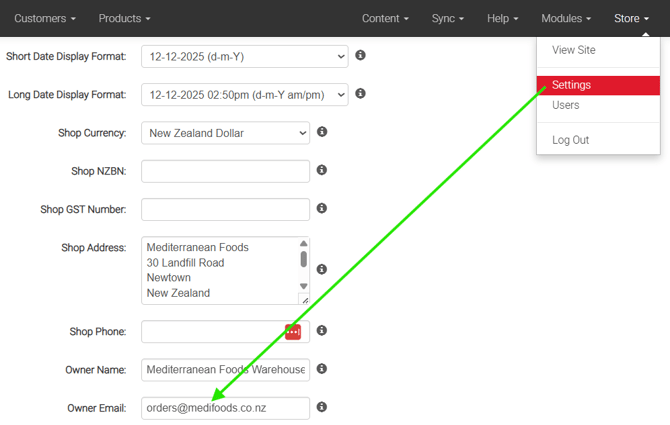
-
then check for
medifoods.co.nz), not just the site’s visible domain (in this case their site's domain is: www.mfw.nz - that's NOT the domain we need to check for.) -
Steps:
- Log in to Sendgrid Admin (do NOT go to any subusers)
- Click on Settings
- Navigate to “Sender Authentication” → “Domains.”
- Click on "show more" in "Domain Authentication"
- Search for the customer’s email domain (from the site owner’s account).
- Confirm there is an “Authenticated Domain” (DKIM/DomainKey) entry for the customer’s domain:
- e.g., for
medifoods.co.nz, ensure the domain key exists.
- e.g., for
2. Check SPF Record in MXToolbox
Visit MXToolbox SuperTool and query the domain (e.g., medifoods.co.nz).
a) Is our Sendgrid IP Address included in their SPF record?
- Look for the line:
ip4:167.89.18.77
(This is our current Sendgrid sending IP; replace if updated in future)
b) Is the Sendgrid Domain Key included?
- Look for an “include:” statement for the Sendgrid-provided domain key, starting with “em”.
- Example (using Medifoods):
include:em4781.medifoods.co.nz - Remove any older SPF entries for Sendgrid, e.g.,
include:email.shopau8.info.
3. DMARC Policy Check
- Check for DMARC:
In MXToolbox, look for a DMARC record for the domain (_dmarc.customer-domain.com) - If missing:
Advise the customer that a DMARC record is now required to ensure successful delivery—do not prescribe policy values; just instruct them to have their IT/dns team create one.
4. Create Domain Authentication & Link Branding
-
In Domain Authentication, click Authenticate Your Domain.
-
Which Domain Name Server (DNS) host do you use?
Select “I’m not sure.” -
Would you also like to brand the links for this domain?
Select Yes.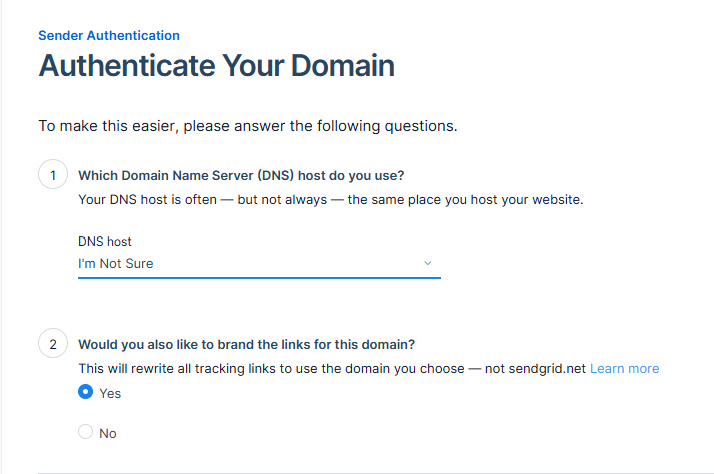
-
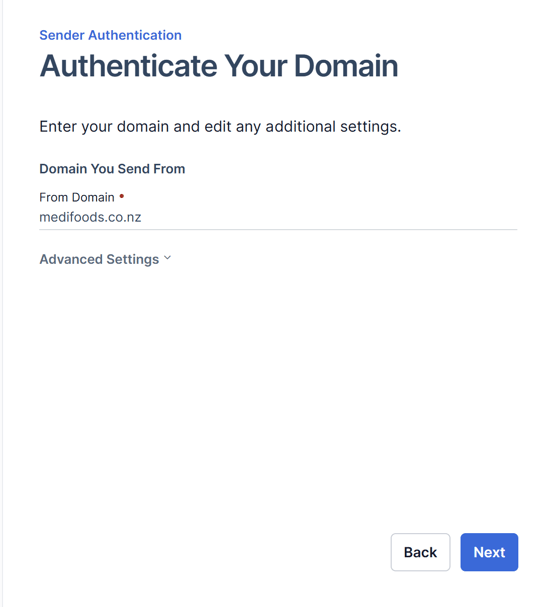
For Domain you send from, enter the domain of the site owner’s email address.
-
Example: If the email is orders@medifoods.co.nz, the domain is medifoods.co.nz.
-
- Once entered, click Next.
Sending DNS Records to the Customer
-
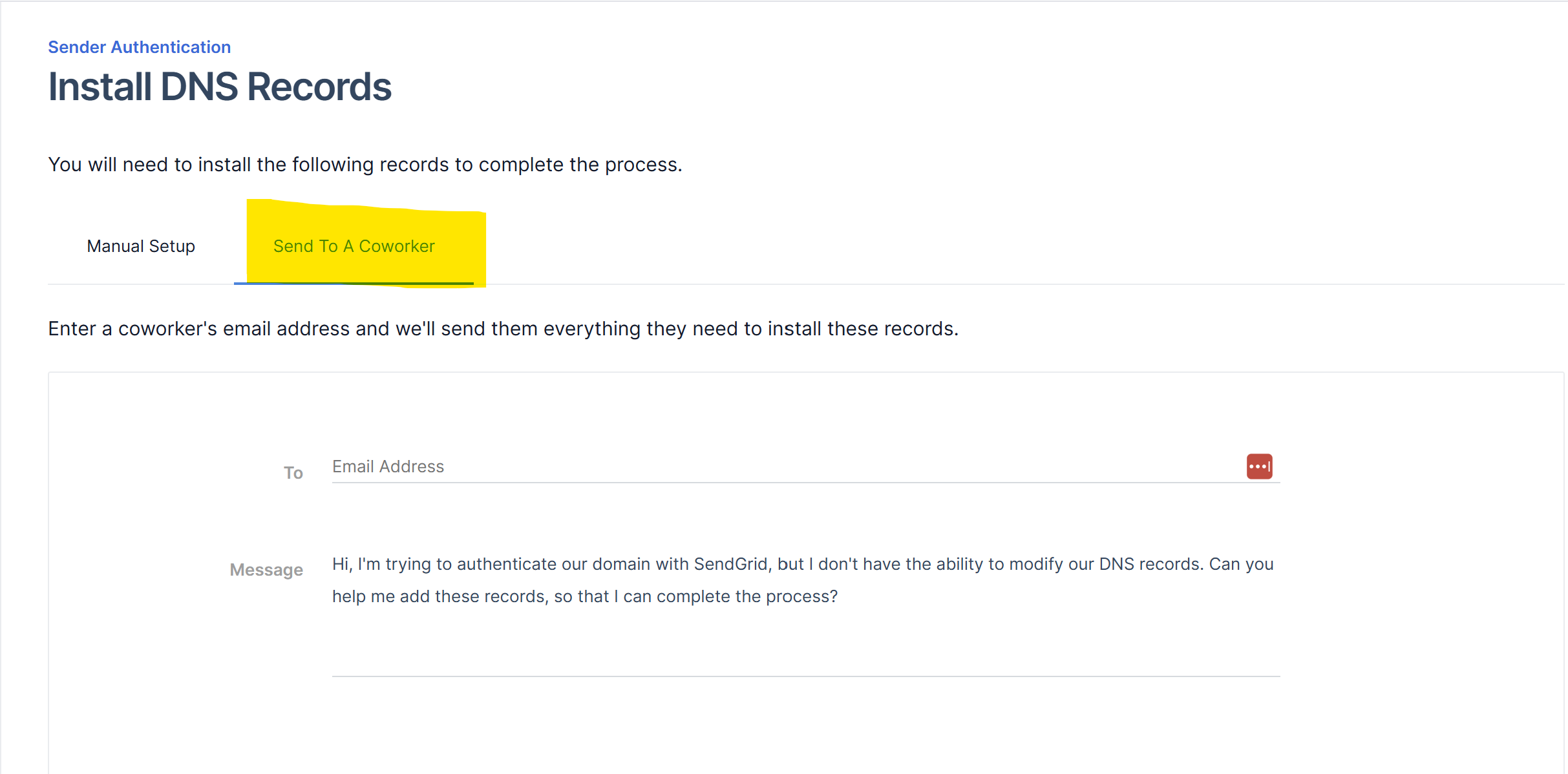
Click Send to a Co-worker.
-
Enter your own email (this makes it easier to link the customer's DNS records when replying).
-
-
When you receive the email, right-click View DNS Records & Instructions → Copy Link.
-
This link is used when sending the customer their DNS records.
-
When Responding to a Customer
-
Use #DKIM in HubSpot to auto-populate the standard DKIM response.
-
In your message, type “Here is a link to your records”, highlight it, press Ctrl + K, and paste the link you copied from the DNS email.
5. Authenticating the Domain & DMARC
This final step can only be done after the customer has added their new DNS and DMARC records.
-
Navigate to Sender Authentication → Domains.
-
In Domain Authentication, click Show More.
-
Search for the customer’s email domain (based on the site owner’s email).
-
Click into the customer’s domain and select Verify.
-
Repeat the process for Link Branding:
-
Scroll down to Link Branding under Sender Authentication
-
Click into the domain and complete the verification for DMARC.
-
6. Context & History
- Past practice:
Previously, authenticating the DKIM/domain key in Sendgrid alone was often sufficient for basic deliverability. - Current requirement:
Both the Sendgrid sending IP (ip4:) and the domain key “include:” entry must be present in the SPF record to meet stricter recipient mail server policies.
Omitting either often results in mail being blocked or quarantined.
Example (Medifoods)
SPF should contain:
v=spf1 a mx include:em4781.medifoods.co.nz ip4:167.89.18.77 -all
(Do NOT include both em4781.medifoods.co.nz and the outdated email.shopau8.info entries)
Summary:
Always verify both domain key authentication in Sendgrid (matching the email domain) and correct SPF entries (IP + include:emXXX), then check for a DMARC policy before further troubleshooting. Recipients’ mail servers are now far stricter; all elements must be present to avoid delivery issues.