
OVERVIEW
If you're selling primarily to overseas locations - you may have the need to change the date format on the site, eg. in the US - dates are typically in Month, Day, Year format, vs. Day, Month Year here in Australia & New Zealand.
SCENARIO/ DETAILS
NOTE: To edit this information on your site, you'll need Admin/CMS access to the site - if you don't already have this, please follow up with your management team as they will have the ability to add you as a CMS user.
Once logged into the CMS - you'll need to click on the top-right menu:
Store>Settings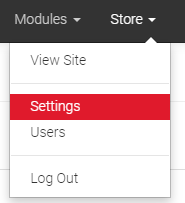
This will open the Store Details page where your default company info and details are saved on the site.
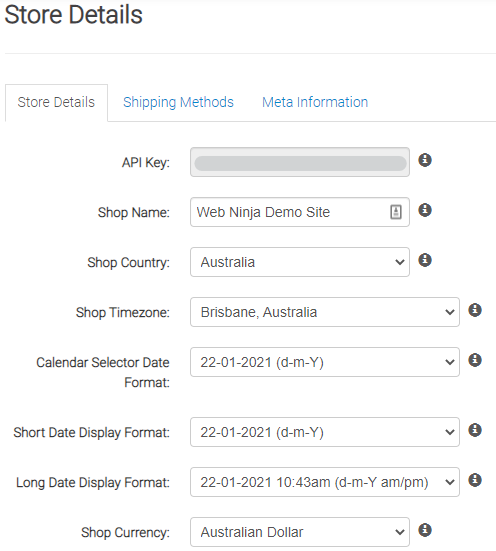
There are 3 options for selecting the date format.
- The first controls the option for the checkout date picker
(NOTE: not all sites have this option enabled - if you don't have a date picker on your checkout, you can ignore this option)
-
- this only has 2 options: dmy or mdy

- this only has 2 options: dmy or mdy
-
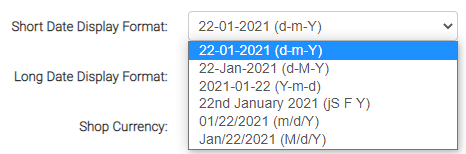
- Short Date: when it's just the date month year with no time stamp displayed
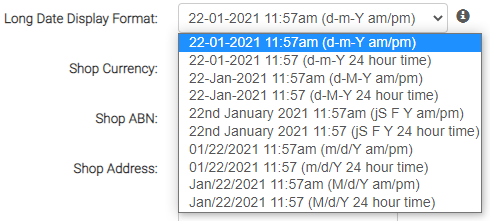
- Long Date: when it includes the short date + the time
Limitations: This option is a site-wide global setting, so it affects all date pickers and automated dates displayed across the site. It can't be configured so that some customers see the date in AU/NZ format while others see it in US format - so you'll need to apply this change based on who the majority of your customer are and where they're located.