
Overview
When you upload a new version of a file (e.g. PDF) to Web Ninja File Manager, you expect the updated version to appear wherever that file is linked on your website (e.g. product pages).
If you’re still seeing the old/outdated version after uploading a replacement, it’s usually because the link you’re using points to a specific, version‑locked URL for the file instead of the permanent file URL.
This article explains how to identify the problem and how to fix your links so they always show the current version of the file.
Symptoms
You may be affected by this issue if:
- You frequently use Web Ninja File Manager to link PDFs or other documents to products.
- You upload a new version of a file with the same name (e.g.
Test file.pdf) into File Manager. - The file shows as updated in File Manager, but:
- Product page links still open the old document, or
- The PDF content on the site does not reflect your recent changes.
Core Cause
Web Ninja File Manager maintains versioned files behind the scenes.
If you:
- click to view a file in File Manager,
then - Copy the full CloudFront URL from the address bar, for example:
https://d347awuzx0kdse.cloudfront.net/industrialworld/content-file/Test%20file.pdf
When you later upload a new version of the same file, that original CloudFront URL remains tied to the older version and will not automatically update on your product pages. (or ANY page or post where you've pasted the url as a link).
Instead, you should use the permanent file URL that Web Ninja provides via the “View” link in File Manager. This URL always redirects to the latest version.
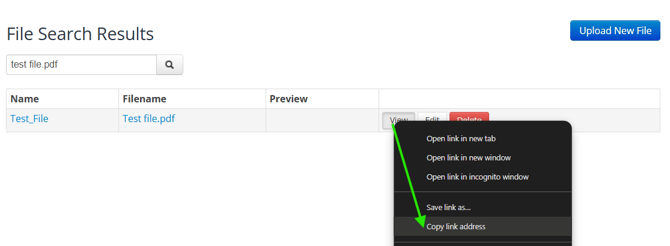
Fix Existing Links
You'll need to go back to every place where you've previously pasted the full cloudfront url for the file, and replace it with the permanent file url per the steps above.
Still Not Updating?
If you’ve updated your links to use the View URL and the file still appears outdated:
- Clear your browser cache or test in an incognito/private window.
- Confirm you uploaded the new version to the correct file in File Manager.
- Double‑check that your product/page link matches the format of:
"domain/file/{id}/{file name}"
If the issue persists, please contact Web Ninja Support with:
- The affected file name in file manager (and the URL to the file in file manager if you have it)
- The link you’re using (e.g. https://yoursitedomain/file/123/test-file)
- a link to one or more pages or product pages where you're pasting this url
- a screenshot showing the correct version of the file (if it's a PDF - just the front cover or something uniquely different about this version of the PDF; if it's an image - you can just send through a copy of the image iteself)
and - a screenshot showing the incorrect version that keeps coming up - this will help us to know what we're comparing with while testing