
Spreadsheet Data Upload
Many accounting packages have a limited number of additional attribute fields available for products. Where this is the case, Web Ninja offers a CSV spreadsheet upload feature that allows you to supply supplementary product data directly, bridging the gap between what your accounting package can store and what your website needs to display.
Don't have this feature yet? If your site is still under development, speak with your Project Manager. If your site is already live, log a support ticket and our team will be happy to assist.
How It Works
Your Web Ninja contact will support you with setting up and configuring a CSV file that is linked directly to your website. This file acts as a secondary data source, allowing you to store and update additional product attributes such as descriptions, specifications, or grouped product fields that cannot be held within your accounting package.
During each sync, the Web Ninja platform reads the CSV file and applies the relevant attribute data to the matching products on your site.
-
If a product code in the spreadsheet doesn't match an existing product on the site, it will simply be skipped and no errors will be produced.
-
It's also important to note that the CSV import is used exclusively for product attribute fields; the product itself must still exist in your accounting package in order to be imported to the site.
Updating the Spreadsheet
- Open the CSV file that your WebNinja contact has connected to your site.
- Make the required changes to your product data.
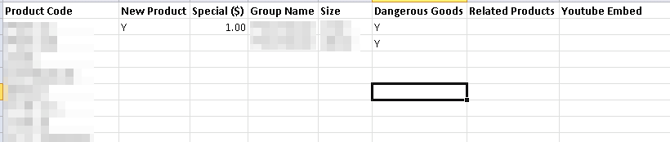
- Save the file, ensuring the following:
- The file name remains exactly as it was. Do not rename it.
- The file is saved in the same location as the original. Do not move it.
- The file is saved in CSV format.
- Log in to the admin area and run a sync. Your updated data will be applied to the site once the sync is complete.
Important Notes
- Do not change the order of the columns. Web Ninja reads the data based on column position. Reordering columns will cause incorrect data to be applied to the wrong fields. If you need to make structural changes to the spreadsheet, contact us before doing so.
- Do not rename or move the file. Web Ninja looks for a specific file name in a specific location. If either changes, the sync will be unable to locate the file and your data will not update.
- Not every product needs to appear in the spreadsheet. Only include products that require additional attribute data. Any product codes not found on the site will be skipped automatically.
- The CSV is for product attributes only. Products must already exist in your accounting package to be imported to the site; the CSV cannot be used to create new products.
Summary
The spreadsheet upload feature extends your accounting package by storing extra product data your website needs. The CSV file lets you add attributes, specifications and grouping data so you can present complete, detailed product listings.
Once your Web Ninja contact has linked the CSV file to your site, keeping data up to date is simple: open the file, edit, save in the same place, and run a sync.
For the sync to work correctly, the file name, file location and column order must remain unchanged. Contact your Web Ninja representative before making any structural changes.
Used correctly, the spreadsheet upload keeps your product data accurate, your catalogue organised and your website running smoothly, even when your accounting package is limited.