Submitting a Quote
Users can submit a quote request through one of two methods depending on your website configuration. The first time a product is added to a quote, a new quote request is automatically created.
Option 1: Create a Quote from the Cart
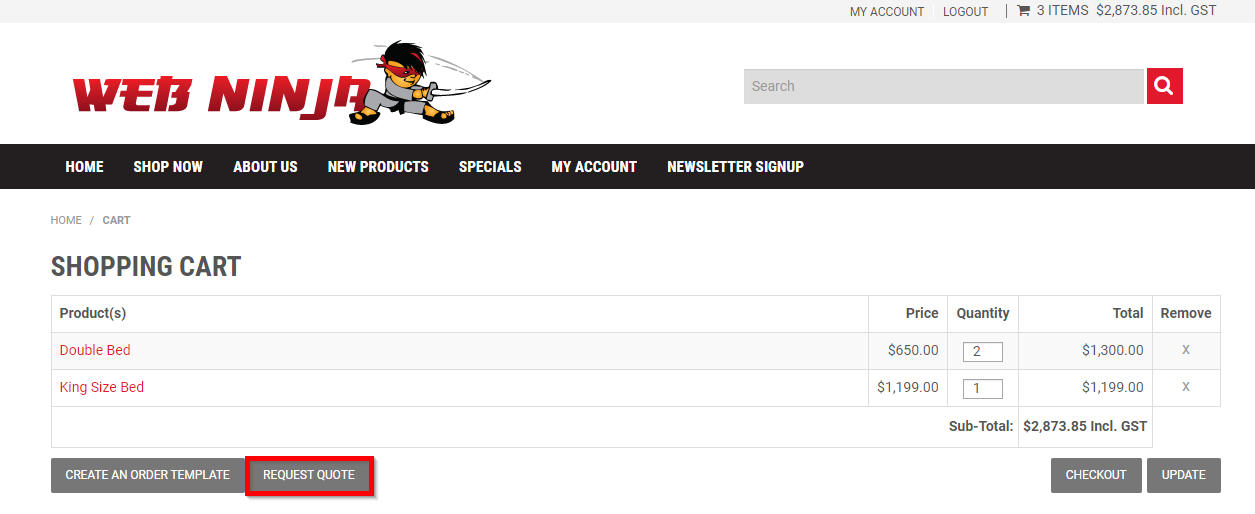
Users can browse the website and add multiple products to their shopping cart as normal. When they are ready, instead of proceeding through the standard checkout process, they can choose the Request a Quote option from the cart page.
This will convert the current cart contents into a quote request, allowing the customer to submit pricing or availability enquiries without placing an order.
Option 2: Add Products Directly to a Quote
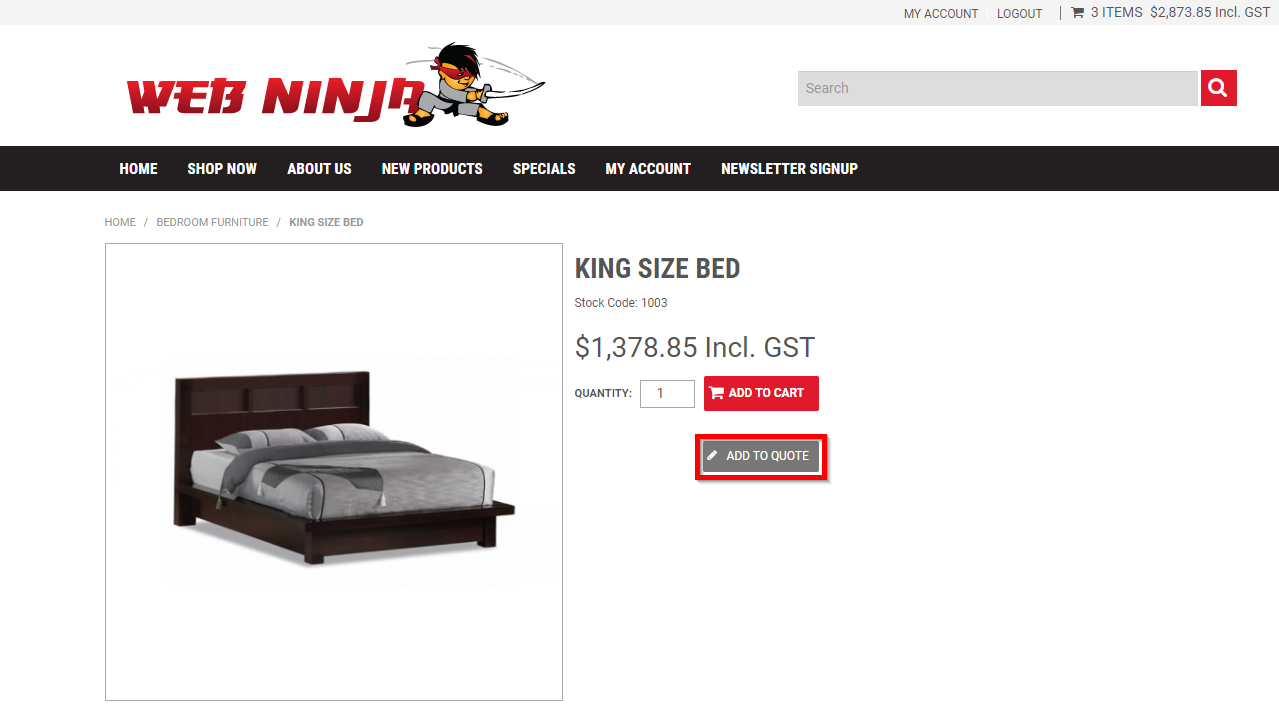
Some websites are configured to allow products to be added directly into a quote request from the product detail page.
Where enabled, users can select any required product options or configurations and click the Add to Quote button. The selected item will then be added to the user’s current quote without needing to go through the shopping cart.
Customers can continue browsing and add additional products to the same quote request as required.
Reviewing and Submitting a Quote
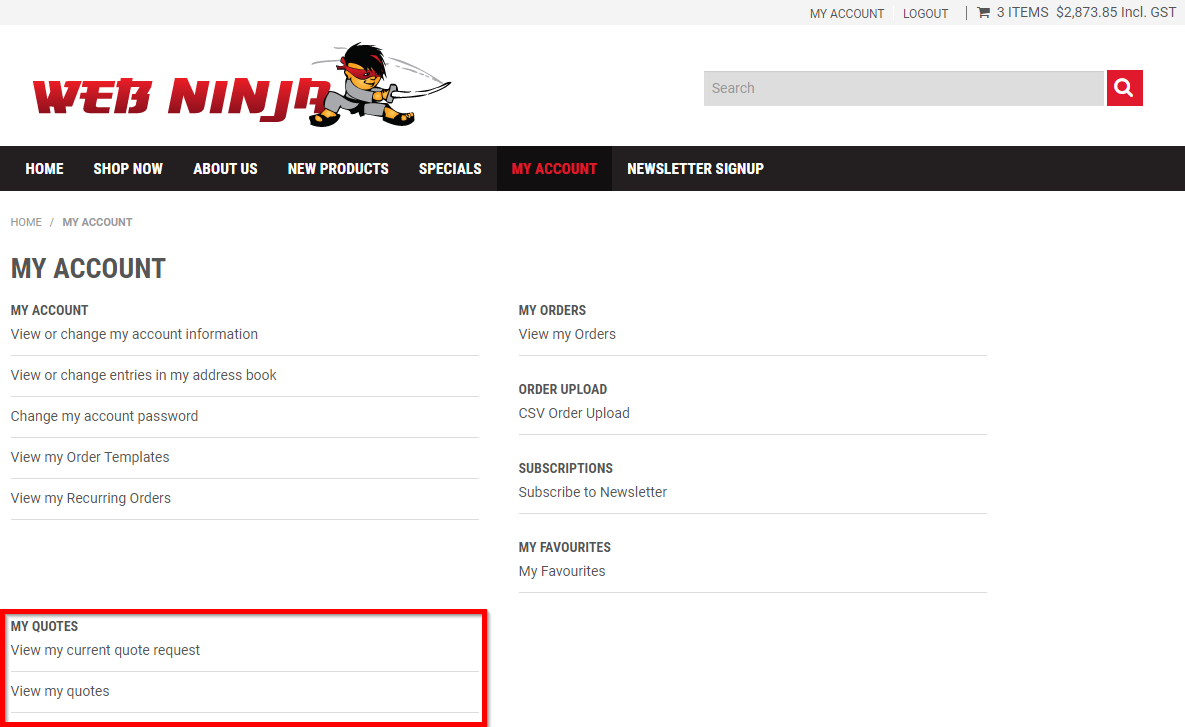
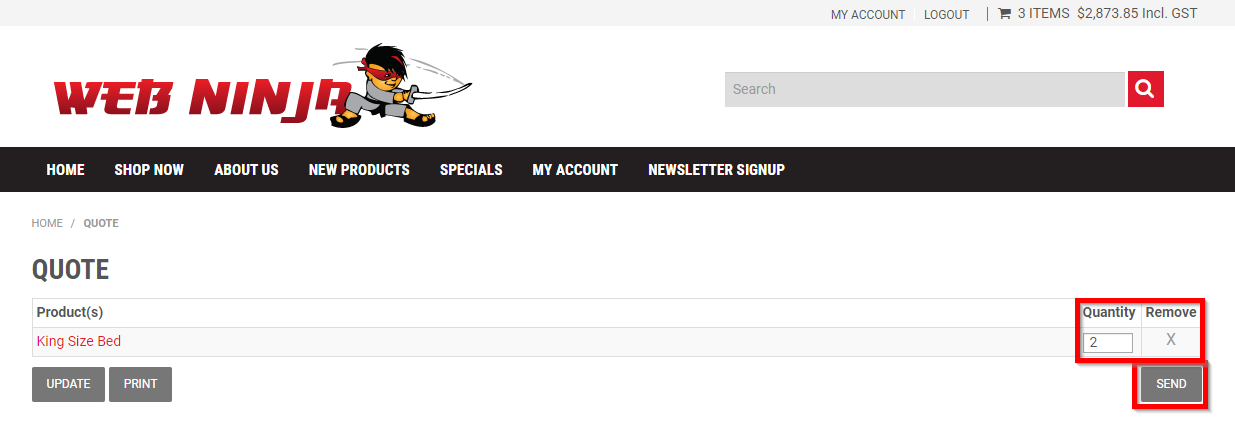
When the customer is ready to finalise their quote request, they can access the Current Quote page through the My Account area.
From the Current Quote page, customers can:
- Review all products included in the quote
- Update item quantities
- Remove products from the quote
- Print a copy of the quote for reference
- Submit the quote request for review
Once all details are confirmed, the customer can click Send to submit the quote.
After a Quote is Submitted
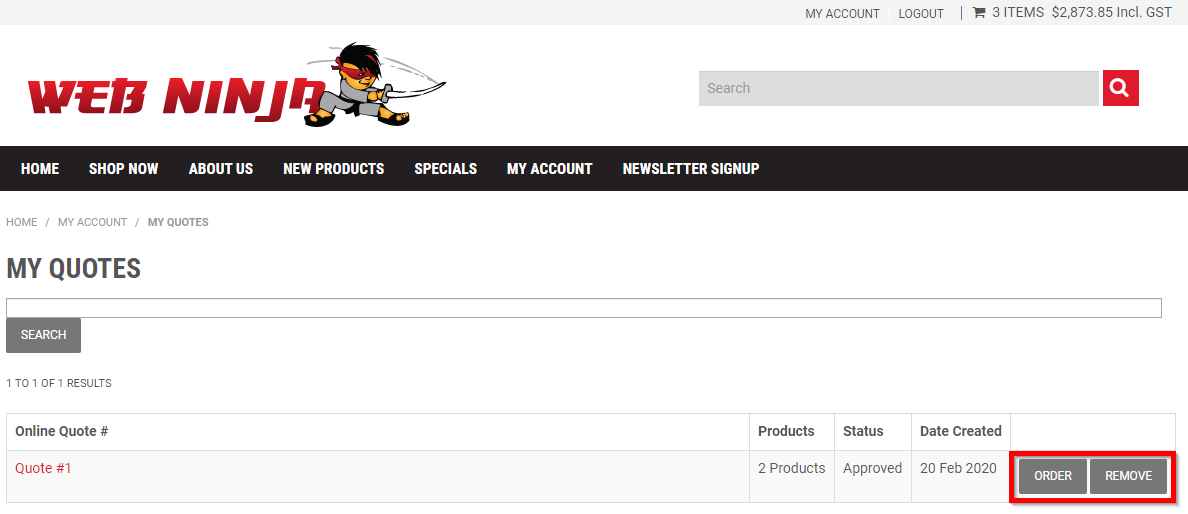
Once a quote request has been submitted, customers can no longer make changes to it. The quote remains visible in their account but cannot be edited, although it may still be removed if required.
After submission:
- The customer receives an email confirmation acknowledging their quote request.
- The website owner (using the configured order notification email address in Admin) also receives a notification email.
Managing Submitted Quotes in Admin
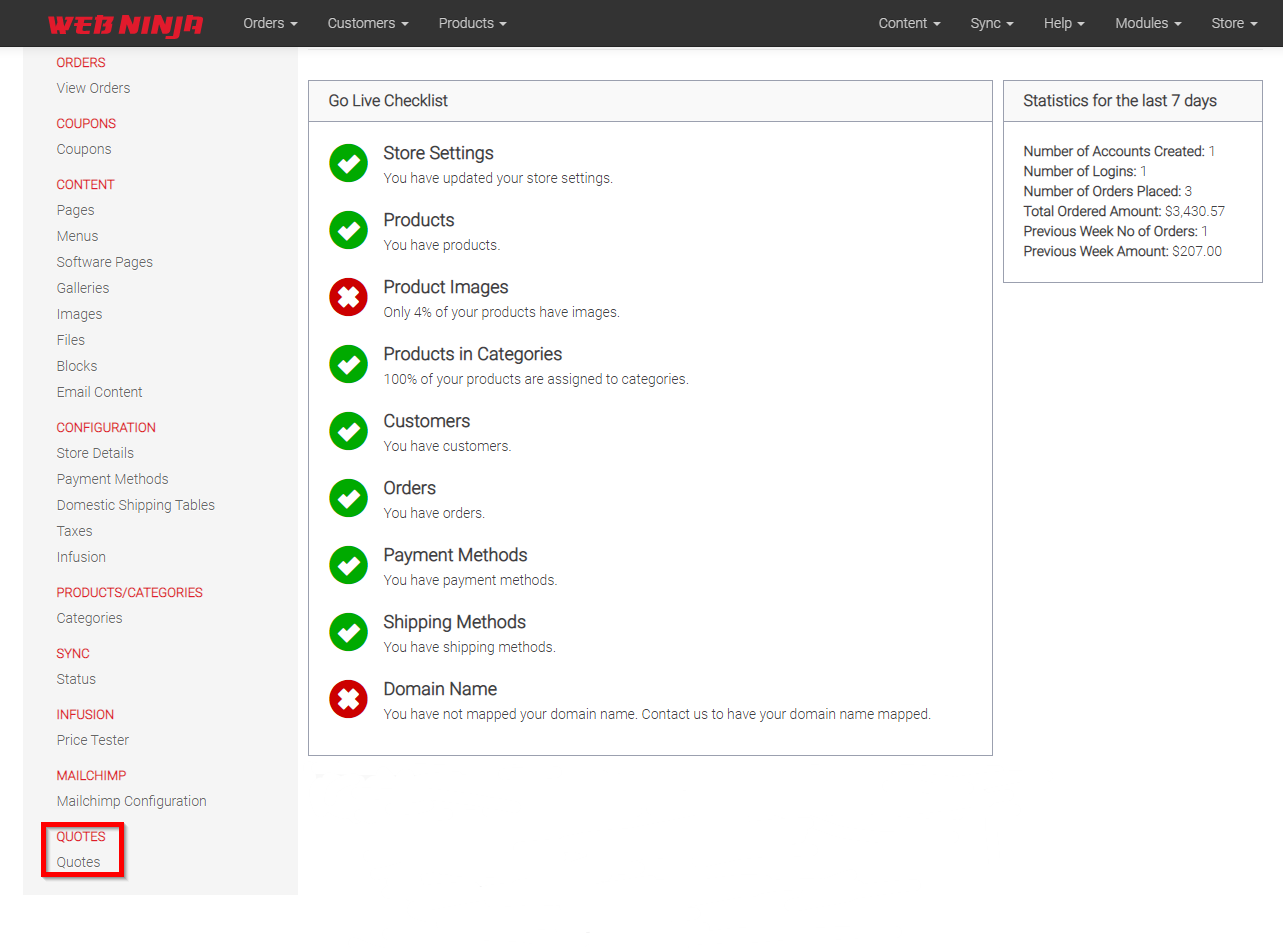
Administrators can review submitted quotes by navigating to Quotes in the left-hand navigation menu within the website administration area.
Opening a quote allows administrators to:
- View all products included in the request
- Add or remove products
- Adjust product quantities
- Update pricing
- Add a reference number or internal notes
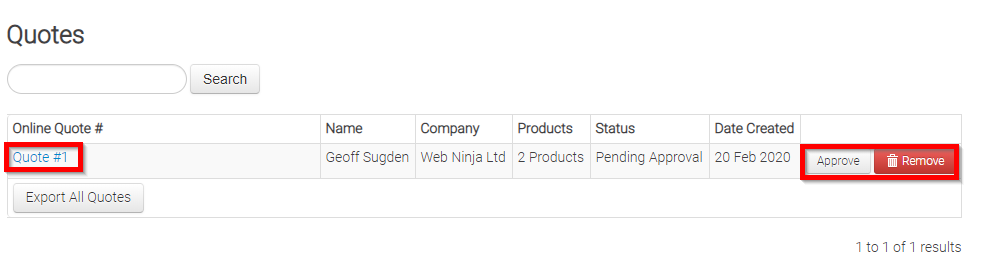
Once all changes have been completed and the quote is ready, the administrator can approve the quote from the Quotes list.
Customer Actions After Quote Approval
After approval, the customer will receive an email notification and can then access the approved quote from their My Account page.
At this stage, customers can:
- Review the approved quote
- Remove the quote if it is no longer required
- Convert the quote into an order and proceed with purchasing
Approved quotes become locked and customers cannot change product quantities, pricing, or quote contents.
If further adjustments are needed after approval, a new quote request must be created and processed through the quote workflow again.