
If you need to reconnect your website to Reckon Hosted (Reckon Accounts in the Cloud) after an update or outage, follow these steps to get your products and order data syncing again.
Step 1: Restart the connection
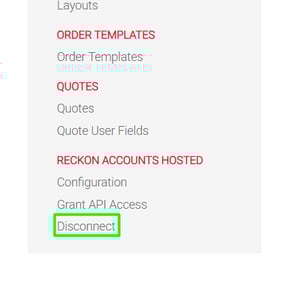
- You may need to initiate a disconnection first - if so - in your website's CMS Admin area, scroll down to the bottom of the left-hand menu and navigate to the Reckon Accounts Hosted setting and click on "Disconnect".
Step 2: Reconnect Your Site to Reckon
- Go back to the Reckon Accounts Hosted heading in the left-hand menu and this time click on "Connect"
- When prompted, you’ll be asked for a username and password.
- Important: The username here is not your normal Reckon login email or user.
- Instead, use the User ID of the “Owner” user for your Reckon Hosted account.
How to Find Your Reckon Owner User ID
- Log in to Reckon Hosted, but do not open your company file yet.
- Look for the area to manage your account (often a button or link on the main landing page after login).
- Click on “Users” to see the list of Reckon users.
- Identify the user with the role of “Owner”.
- Copy their User ID (it will look something like
XXXXXXXXX-1).
Use this Owner User ID and the corresponding password when reconnecting your website.
Step 3: Confirm the Company File Path
- The file path and company file name you use in our system must exactly match what’s in Reckon Hosted.
- For example, a valid path might look like:
//exampleserver/folder/YourCompanyFile.QBW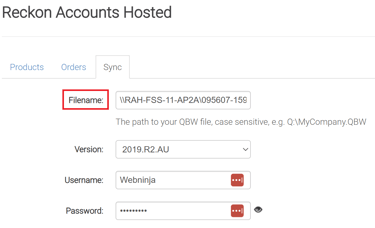
- If your company file name has changed, make sure to update it in the website settings.
- You can find the correct file name in Reckon Hosted when you go to open your company file.
Step 4: Complete the Connection
- Once the correct Owner User ID, password, and file path are entered, the system will connect to Reckon Hosted.
- You should see a message confirming a successful connection.
Step 5: Test and Troubleshoot
- Run a sync from your website admin panel to confirm everything is working.
- If you see errors, double-check the company file name and file path—these must match exactly.
- If you’re unsure whether the file path is correct but know the file name hasn’t changed, try syncing. If it fails, review your file name and path in Reckon Hosted.
By following these steps, you’ll have your website and Reckon Hosted connected and syncing correctly.