
The Mailchimp integration automatically sends eligible customer registration details from your site to your nominated Mailchimp audience once it has been configured.
To set up the integration:
- You'll need your Mailchimp API key and the Audience ID of the marketing audience you want these contacts synced to. You can find these details in Mailchimp by:
- going to Account > Extras > API keys to create or copy your API key
Please refer to Mailchimp's own guides - Here's Mailchimp's guide on Audience IDs
- going to Account > Extras > API keys to create or copy your API key
- These details are entered into your Web Ninja settings.
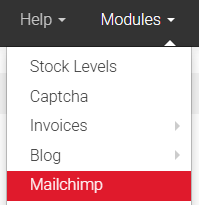
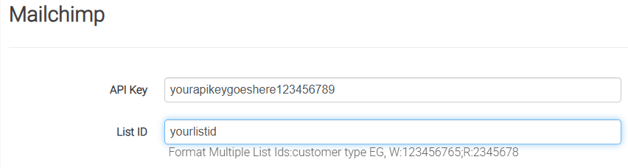
- Merge Fields:
- By default only #FNAME and #EMAIL are mapped to the mailing list
- if you have other Merge fields you want linked to Mailchimp - you'll need to inform us which merge fields to link to (eg, #MERGE3, #MERGE4 etc.) and which customer fields you want us to map to those fields
- If you have any merge fields that are mandatory - we MUST map those fields or the sync to Mailchimp will fail. Otherwise you'll need to make them non-mandatory/required on the Audience merge fields.
Important notes:
- Once configured, the integration runs automatically in the background.
- Customers' details are only synced to Mailchimp at the time of registration
- Customer details are sent to Mailchimp only if the customer has opted in to receive marketing emails on the registration page.
- Contacts who have previously unsubscribed from your Mailchimp list cannot be added again automatically.
- Unsubscribed contacts must be manually added back directly through Mailchimp.
- Email address typos entered by customers cannot be prevented or corrected by the integration.
- If the marketing opt-in box is not selected, the customer’s details will not be sent to Mailchimp and there's no way to re-send it once they're already registered on the site unless you delete them and add their details via the registration page again.