
DESCRIPTION
Sometimes the authorisation that Amazon Marketplace (MWS) grants to Webninja will expire and needs to be reconnected.
EXTRA INFO
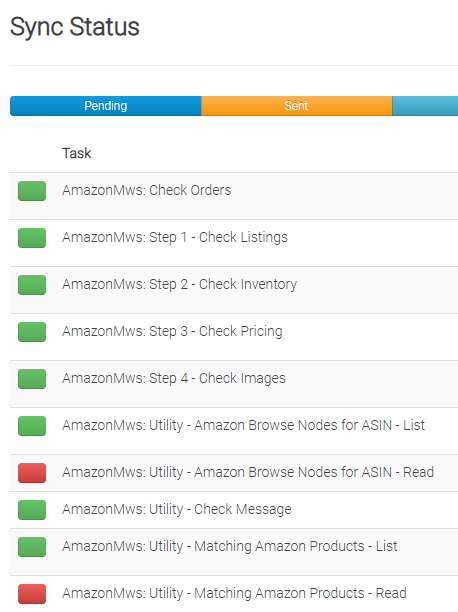
Symptoms of this issue can look like:
- orders from Amazon no longer syncing to Webninja (and therefore your accounting package)
- listings no longer update or add to Amazon
- sync status tiles on the Webninja Connector CMS appear in red for Amazon:
RESOLUTION
You might need to check with Webninja Support team if the error is directly related to the API authorisation expiring in Amazon as they can check the error logs. However even without Support's help, you can follow these steps to double-check the status of the API connection.
NOTE - only the MWS seller account OWNER can add the Developer Access so you will need their original login OR send them the instructions
Amazon MWS - Adding Developer Access for Web Ninja
- Login as the Amazon seller account administrator. Once logged in go to the settings drop down as shown in the image below and click on “User Permissions”
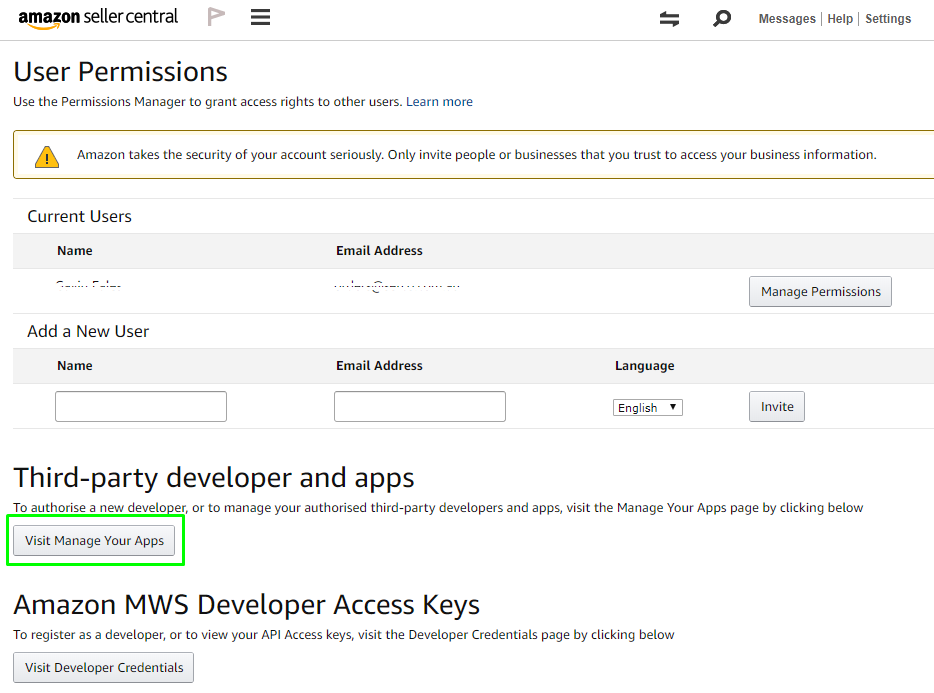
- Scroll down to the "Third-party developer and apps" section - per the screenshot below - click on the "Visit Manage Your Apps" button:
- If it shows the status as disabled and an expiry date, just click on the "Enable" button (see screenshot below) and you shouldn't need to follow any further steps below after this point.
Otherwise if you don't see webninja listed in the "Developer name" column (see screenshot below) you'll need to add us again as an authorised developer.
Click on the button "Authorise new developer":
(NOTE: this image below is an example only - you would obviously see different details on yours)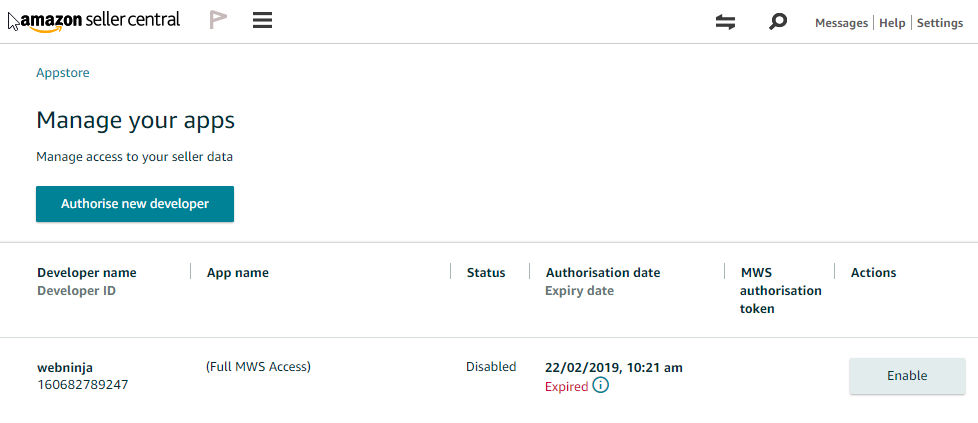
- Follow through the prompts and if necessary, enter the following details:
Developer Name: webninja
Developer Account Number: 1606-8278-9247
- Click read the requirements and what you're authorising - then click "Next"
- Once saved, you will see the Seller ID and the MWS Auth Token
If you still have issues after that, please follow-up with Webninja's Support Team so we can assist you with resolving the issue.