
Once Web Ninja has activated the Stripe integration on your site, you’ll need to add your live Stripe API keys into your Webninja admin so payments can be processed.
Important: Never share your secret key in public places (email screenshots, social media, etc.). Treat it like a password.
1. Open your payment settings in Webninja
- In your browser, go to:
https://your-site-url/admin/store/payment
(Replaceyour-site-urlwith your actual domain.) - Find the Stripe section on this page.
- Leave this tab open – you’ll come back to paste your keys in a moment.
2. Get your live API keys from Stripe
-
Log in to your Stripe account
Go to https://dashboard.stripe.com and sign in. -
Open the Developers section
In the left‑hand menu, click Developers. -
Go to API keys
Under Developers, click API keys. -
Switch to Live mode (if needed)
- At the top of the page, make sure you are not viewing test data.
- If you see a “Viewing test data” toggle turned on, click it to turn test mode off.
- With test mode off, you’re now looking at your live API keys.
-
Locate your live keys
You should see:- Publishable key – starts with
pk_live_… - Secret key – starts with
sk_live_…
- Publishable key – starts with
-
Reveal and copy your live secret key
- Click Reveal live key (or similar wording) next to the secret key.
- Complete any security verification (SMS / authenticator code) if prompted.
- Copy the full value of the Secret key.
NOTE: Live mode key access
You can only reveal a live mode secret key one time. If you lose it, you can’t retrieve it from the Dashboard. In that case, rotate or delete it, and then create a new one. (See Stripe's documentation for further info - link at the bottom of this article)
-
Copy your publishable key
- Copy the Publishable key as well.
3. Add your Stripe keys into Webninja
- Go back to your Webninja tab:
siteurl/admin/store/payment - In the Stripe section:
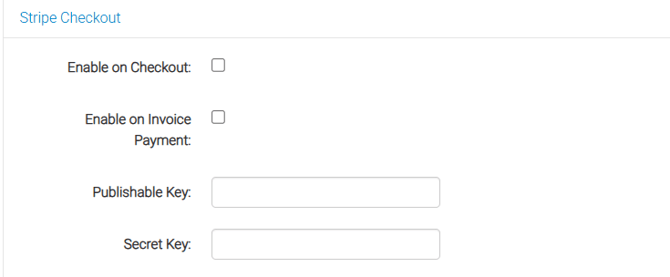
- Paste your Publishable key into the Publishable key field.
- Paste your Secret key into the Secret key field.
- tick the box for "Enable on Checkout" if it's not already ticked (Otherwise it won't show up on the checkout page for your customers)
- NOTE: you may not have an option for paying invoices - this is a setting that's only enabled on some of our sites that allow invoice payments directly via the site.
- Save your changes by scrolling to the bottom of the payments page and clicking the save button.
Once saved, your Webninja site will be connected to Stripe using your live API keys and ready to take live payments at the time of checkout.
Official Stripe documentation
If you’d like more detail directly from Stripe, see:
Stripe Docs – API keys: https://docs.stripe.com/keys