
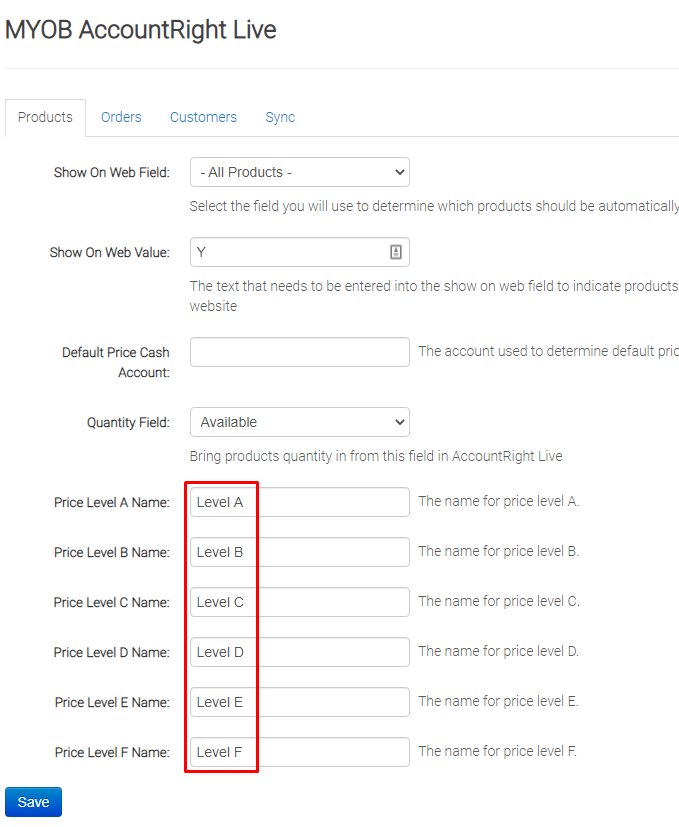
This issue can happen if there's a mis-match between the naming of the price levels in MYOB vs. on the site as MYOB requires us to request the price levels specifically by name. If they don't match, the pricing will be out on the website.
1. Make sure your MYOB Accountright Live (ARL) is updated and is the latest version.
2. Check that the price level names match what is in your MYOB ARL. The price level name settings in the admin are controlled by clicking the Products drop-down at the top of the CMS Admin page on your site, and then click "Sync Settings"
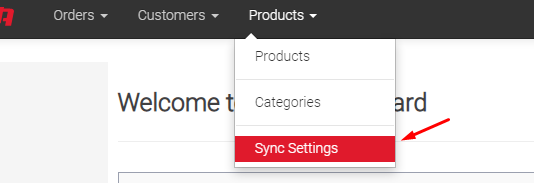
There you can see what price level names we are looking for:
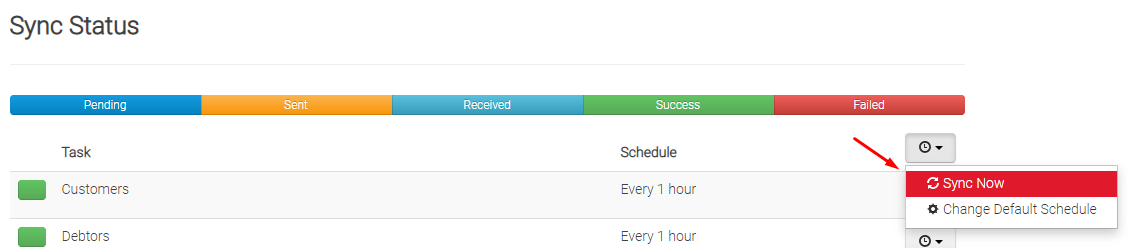
3. Make sure at least two full syncs have run. See below screenshot of how to run a full sync. Running the very top task will sync all sync tasks.
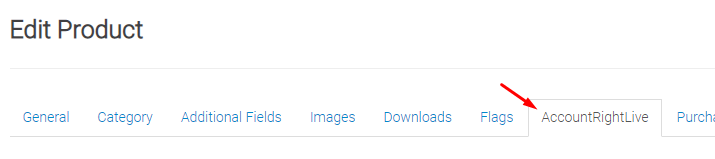
4. Go to the product that is showing the wrong price in the admin. Edit the product, and then click on the "AccountRightLive" tab. There you can see all the pricing that we are syncing from MYOB.
5. If the pricing doesn't match what is in MYOB. You will need to contact MYOB support. Email developers@myob.com and ask them to "Clear the price cache". This will force MYOB to clear any old data that was being stored. Run the full sync again and it should bring through the price you set in MYOB.
If the price still isn't right after following all the above, then please contact Web Ninja support with examples of a product and a screenshot of what the price is set to in MYOB.