
Locate your Webninja API user
- Go to user management
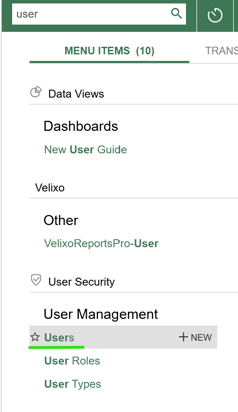
- Generally we at Webninja would of created and called the API user something like WebNAPI, WebNinjAPI,

If you are unsure which User is the API user, contact Web Ninja Support before proceeding.
Choose one of the following methods before establishing the connection.
Method 1: Use your existing Web Ninja API user
- Ask your MYOB/Acumatica reseller to assign a full user licence to your existing Web Ninja API user.

- Keep the user’s existing API licence (either Limited API User licence or Limited API) assigned.
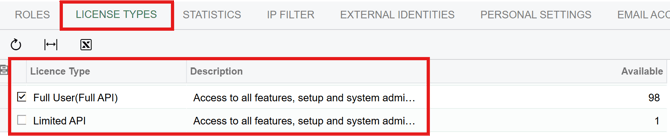
- Use this user when signing in to authorise the OAuth connection in section 3 below.
- Once the connection has been successfully established, your reseller can unassign the full user licence.
Important: The user must retain its API licence for the integration to continue working. Only the temporary full user licence should be removed.
Method 2: Create a new connection user
- Ask your MYOB/Acumatica reseller to create a new user for the Web Ninja connection.
- Have your reseller assign both a Limited API User licence (or Limited API) and a user licence, along with the appropriate integration roles.
- Use this new user when signing in to authorise the OAuth connection in section 3 below.
For either method, the user needs the roles used by your integration, such as ODatav4 User.
2. Create the connected applicationSign in to MYOB Advanced as an administrator, in the tenant your Web Ninja site syncs with.
- Open Connected Applications (SM303010) and click +.

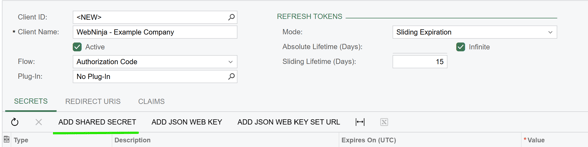
- Enter a Client Name, such as
WebNinja - Your Company, and set OAuth 2.0 Flow to Authorization Code. - In Refresh Tokens, set Mode to Sliding so the connection stays alive while the site syncs.

- On the Secrets tab, click Add Shared Secret, enter a description, and copy the Value. This value is only shown once. You will use it as the Client Secret in Web Ninja.
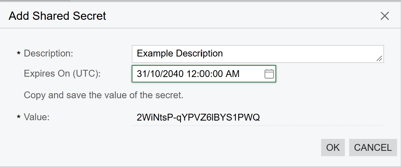
Tip: Set expiration to Far in Future, So it doesn't expire anytime soon
- On the Redirect URIs tab, click Add Row and enter the redirect URI for your Web Ninja site:
https://YOUR-WEB-NINJA-SITE-DOMAIN/admin/myob_advanced/connect/verifyReplaceYOUR-WEB-NINJA-SITE-DOMAINwith your site’s actual Web Ninja domain.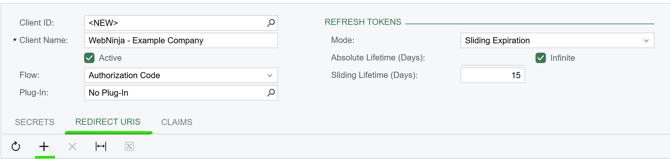
Do not paste the placeholder as written. If you are unsure which address to use, contact Web Ninja Support before proceeding.
- Click Save and copy the Client ID, including the
@Tenantportion.
Important: Keep your Client Secret secure. Do not include it in screenshots or public documentation.
- In your Web Ninja administration area, open Settings.
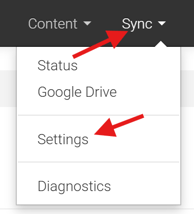
- Paste the Client ID and Client Secret copied from MYOB Advanced.

- Scroll to the end of the page, Click Save, then click Connect to MYOB Advanced.

- Sign in as the API user prepared in section 1, then approve the connection.
Use the integration user for this authorisation step, rather than the administrator account used to create the connected application.
If you used Method 1, once the connection has been successfully established, your reseller can remove the temporary full user licence. The API licence must remain assigned.
What to request from your resellerPlease prepare a user for our Web Ninja OAuth connection using one of these two methods:
- Existing user: Assign a full user licence to our existing Web Ninja API user, retaining its API licence. Once the connection has been established, the full user licence can be unassigned, but the API licence must remain.
- New user: Create a new user with a Limited API User licence, a user licence, and the roles required by our integration, such as ODatav4 User. We will use this new user to authorise the connection.
Web Ninja Support can assist with establishing the OAuth connection once the user and connected application are ready.