
For locally installed ERPs (non-cloud)
we import your product images from a local folder saved on one of your servers.
Let's take a look at how to do this:
- Login to the admin area
- Select Sync> Settings
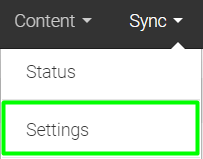
- Confirm or update the folder where images need to be saved. Please note, the image path is relative to where your Web Ninja software is installed, which may be different to your local drives.
(the screenshot below is representative only - every ERP has a slightly different number of tabs and we can't account for all possible options in this article)
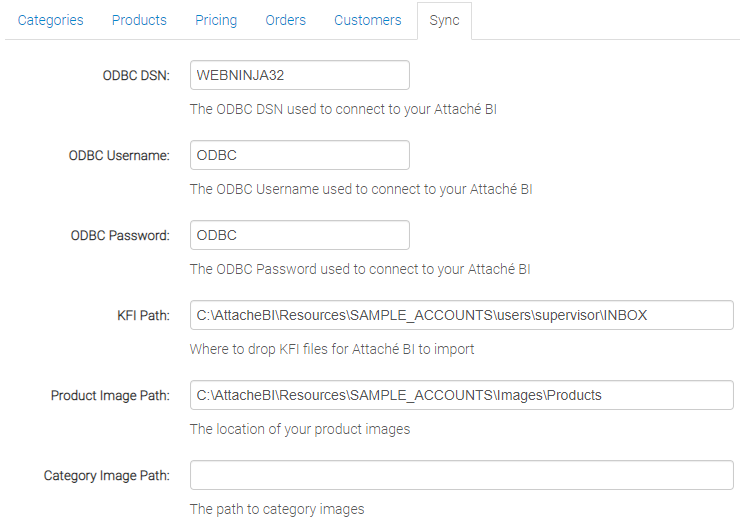
5. The images need to be saved in the following format:
Stockcode.jpg, stockcode_2.jpg, stockcode_3.jpg
Cloud ERP Image Sync
For cloud-based ERPs (eg. MYOB Accountright Live, Acumatica, Netsuite, Unleashed etc.) we offer a few different options, but the primary method used for cloud integrated sites is via Google Drive.
For more info about Google Drive - you can review our article here: Google Drive Setup
For more info about product image formats in general - check out this article: Product Image Requirements